Purpose: This guide covers how to manage and update Contacts in Kizen, helping you keep customer information accurate and current
TABLE OF CONTENTS
Contacts are the customers you interact with. Contacts can be associated with Companies as well as other Custom Objects.
Contacts can be edited in three ways:
1. Manually Edit a Contact
2. Quick Edit a Contact
3. Change a Field for Multiple Contacts at Once
Manually Edit a Contact
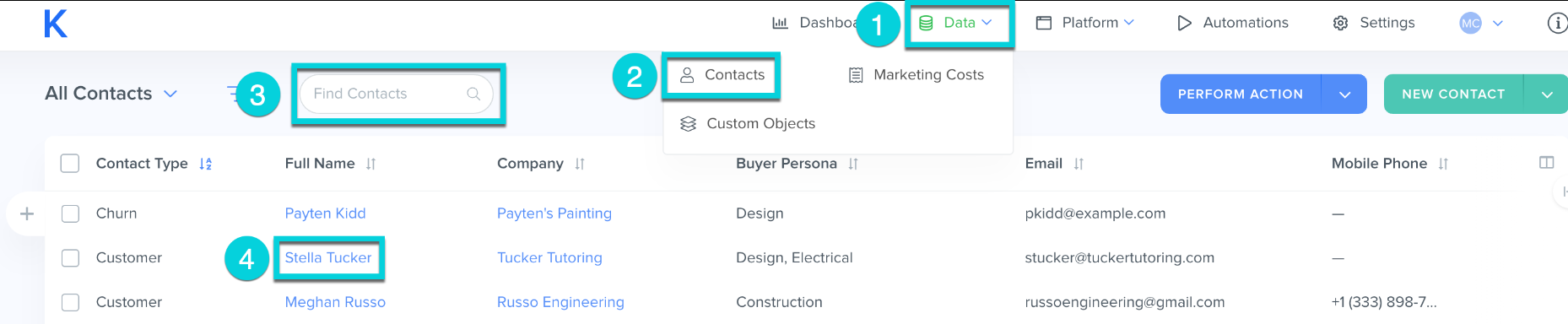
1. Navigate to Data tab from the top menu bar
2. Click Contacts
3. Search for the contact
4. Click on the Contact Name
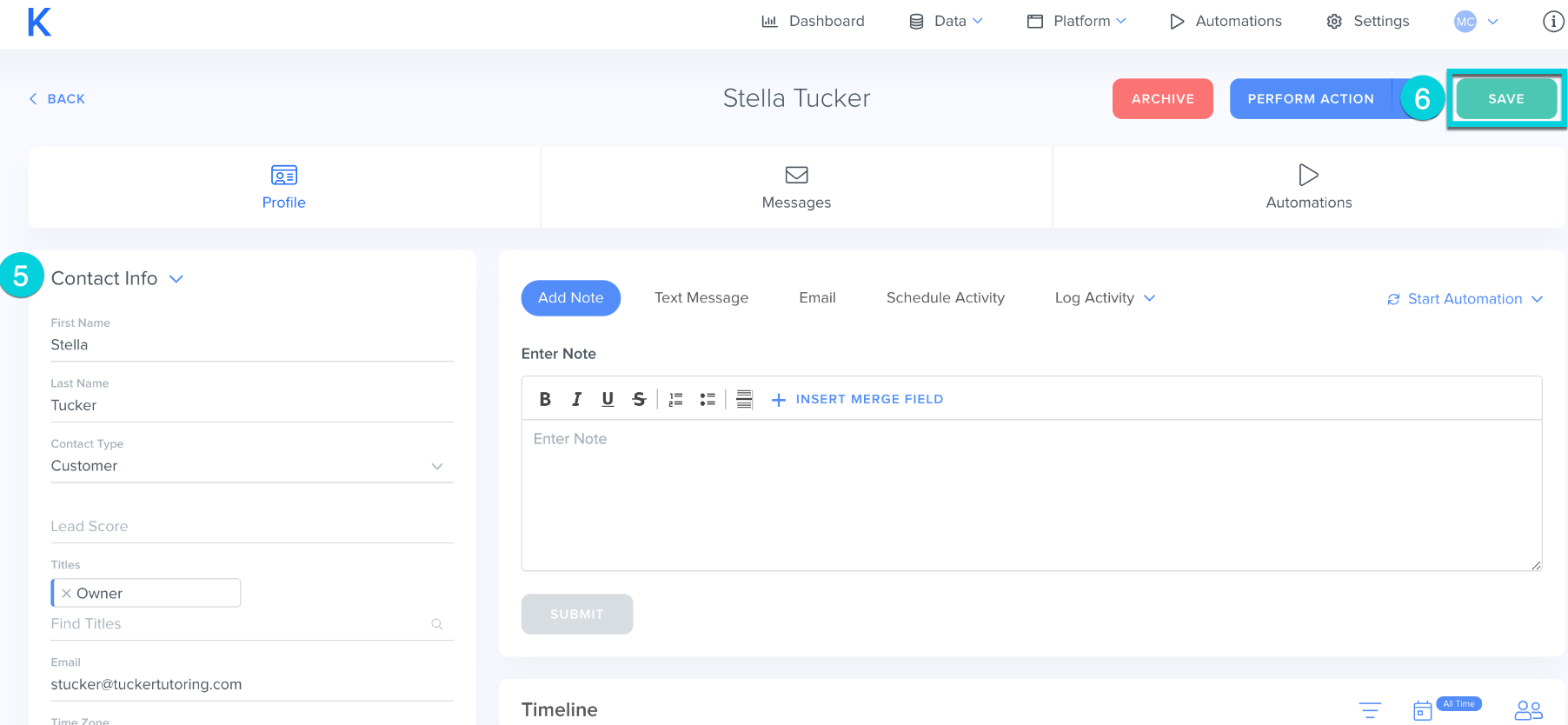
5. Edit the necessary information in the Information Block
6. Click Save
Quick Edit a Contact
1. Navigate to Data tab from the top menu bar
2. Click Contacts
3. Update the necessary information on the All Contacts page
4. Click the ✓ to save each data point

Change a Field for Multiple Contacts at Once
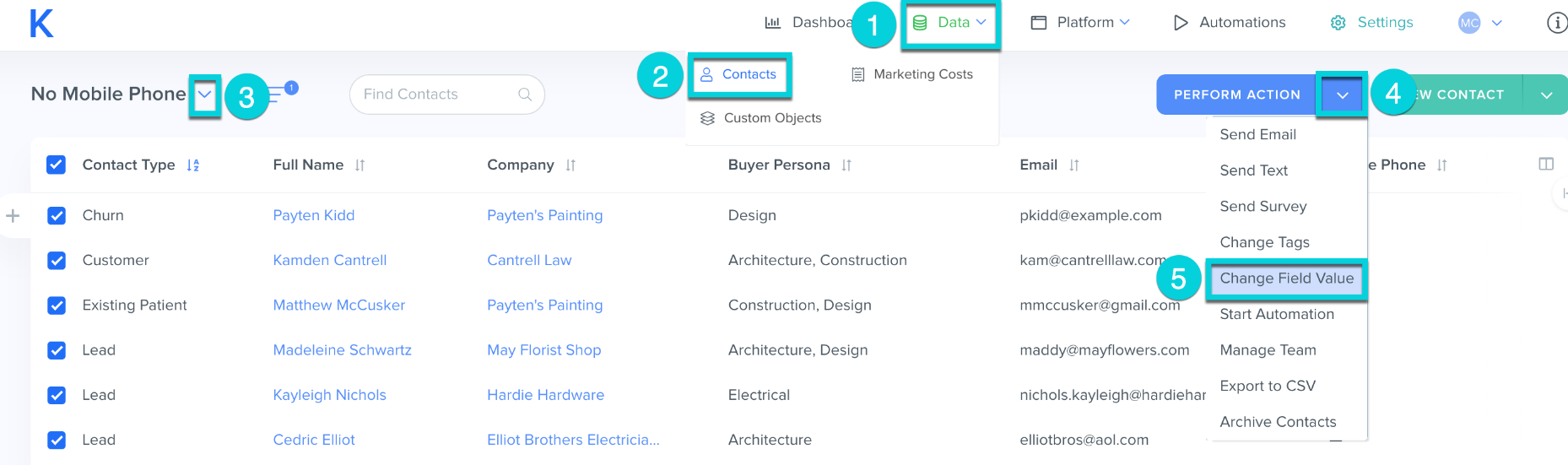
1. Navigate to Data tab from the top menu bar
2. Click Contacts
3. Select the V icon next to All Contacts and choose the Contact Group you would like to Edit
4. Select the V icon next to Perform Action
5. Select Change Field Value
Was this article helpful?
That’s Great!
Thank you for your feedback
Sorry! We couldn't be helpful
Thank you for your feedback
Feedback sent
We appreciate your effort and will try to fix the article