Difficulty: Beginner

Purpose: Learn how to add, edit, and delete Quick Filters to your Contacts or Custom Objects for an additional, easy-to-access layer of filtering.
TABLE OF CONTENTS
- What are Quick Filters?
- How to Edit Quick Filters
- Help! Why Can't I See My Quick Filters?
- Related Articles
- Still Need Help?
What are Quick Filters?
Quick Filters are a powerful feature designed to help you save time and stay organized. With just a few clicks, these pre-defined filters on your Contacts or Custom Objects instantly narrow down data to focus on what matters most — whether you're looking to prioritize specific items, easily find relevant information, or speed up repetitive processes.
How to Edit Quick Filters
- Click on "Data" in the top menu bar > "Contacts" OR click on "Data" > "Custom Objects" depending on which object you want to filter.

- Click on the
 pencil icon under the object record search bar for "Edit Quick Filters."
- To add new Quick Filters, click on the dots to the left of the field you want to filter by, and drag and drop the field from the "Available Fields" list on the left side to the "Active Quick Filter Fields" list on the right side.
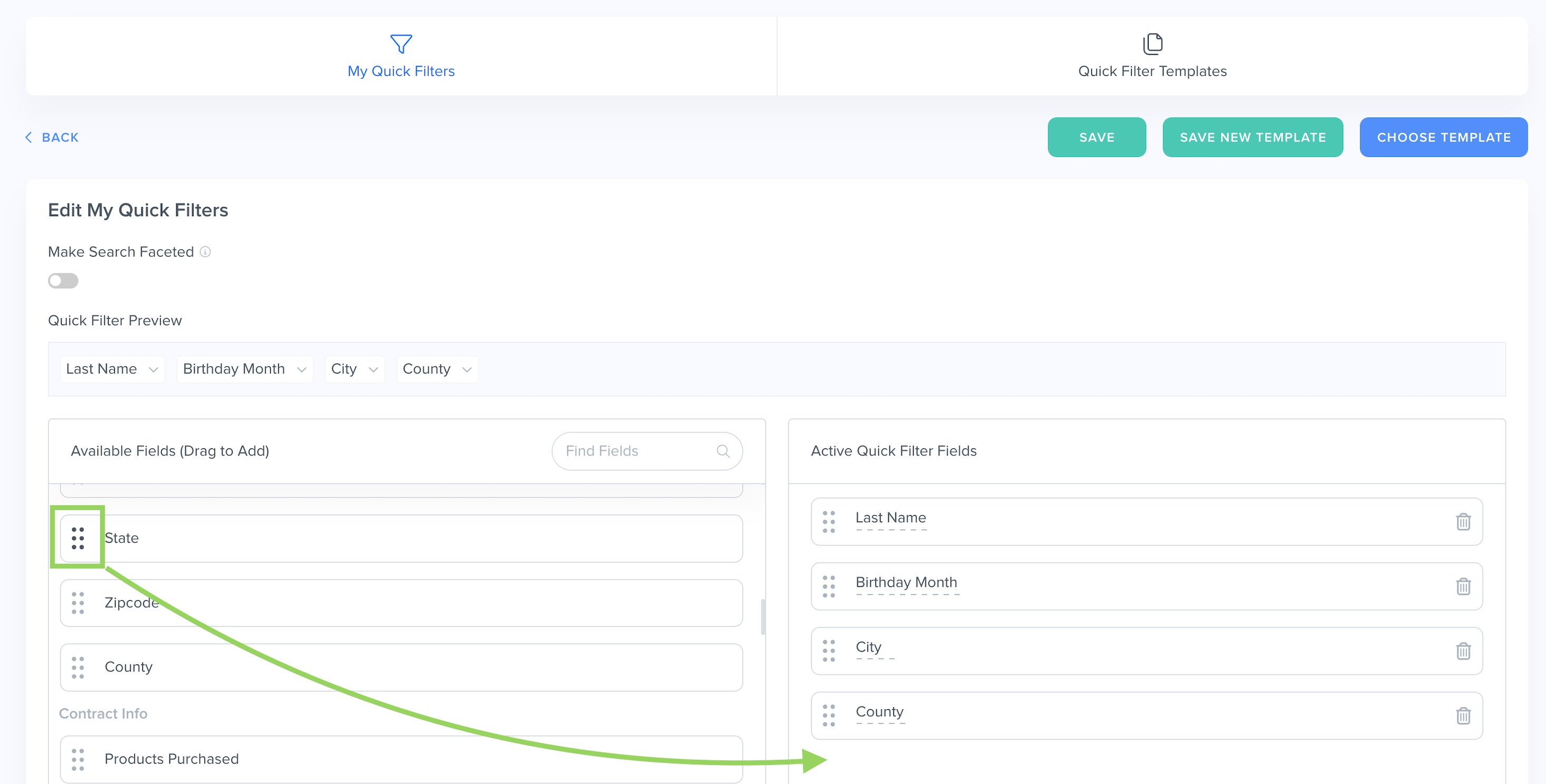
- To change the order of your Quick Filters, click on the dots to the left of the Active Quick Filter Field and drag and drop to the desired position.
- To delete existing Quick Filters, click on the trash bin icon next to the Active Quick Filter Field.
- Preview the updated Quick Filter order in the "Quick Filter Preview" at the top to ensure it meets your needs.
- Click the green "Save" button to apply the settings to your Quick Filters, or click the "Save New Template" to create a new Quick Filter template.
⚠️ Note: Changes that you make to "My Quick Filters" will not be visible to other team members in your account, unless you create a Quick Filter Template and share it with your team members. You can also create multiple Quick Filter Templates for different team members.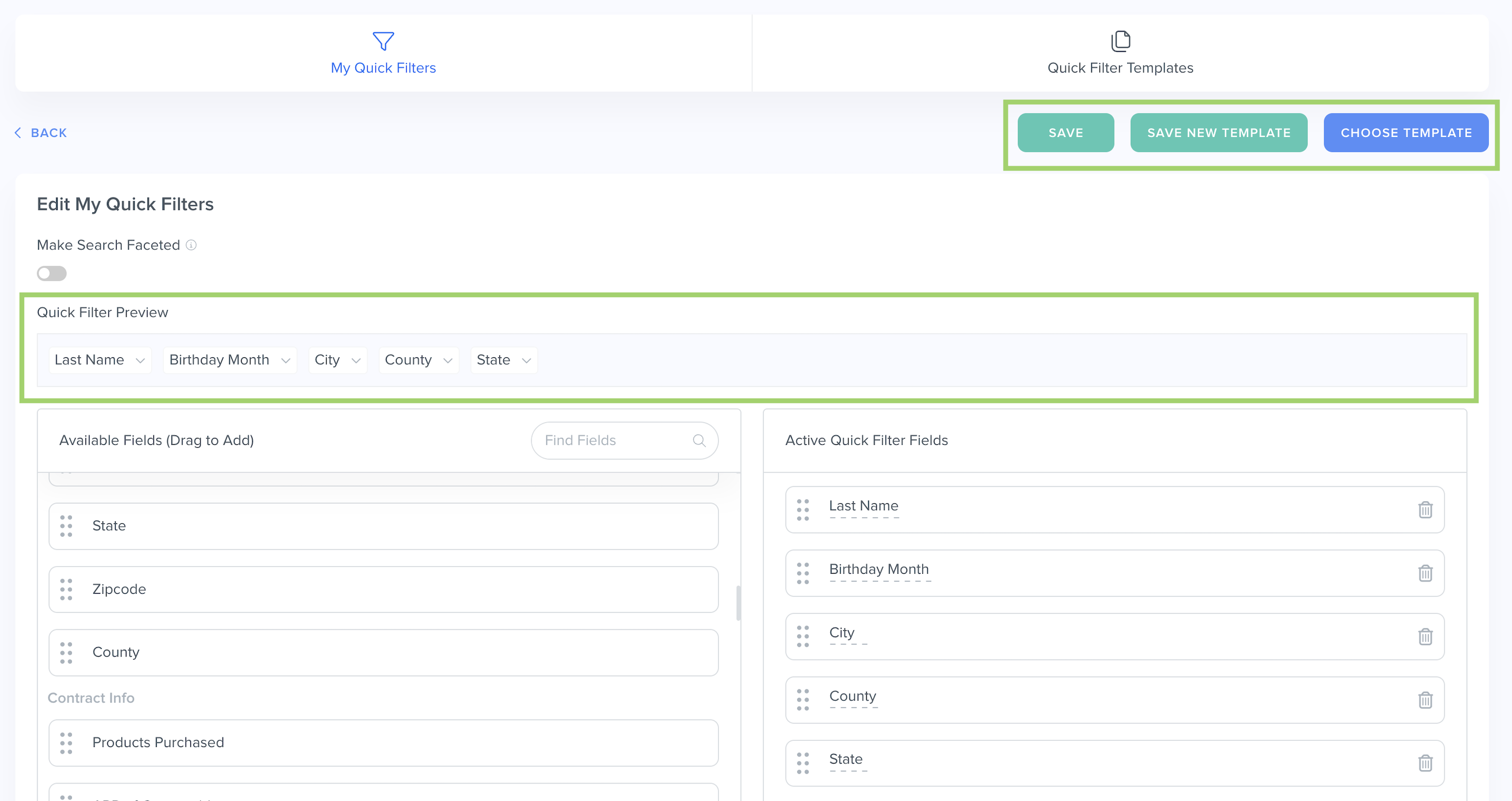
Tip: Toggle the "Make Search Faceted button" to reduce the selectable options to only those that contain results. You will be able to preview how many results will be returned for each facet.

Help! Why Can't I See My Quick Filters?
If you don't see your Quick Filters, the following reasons may apply:
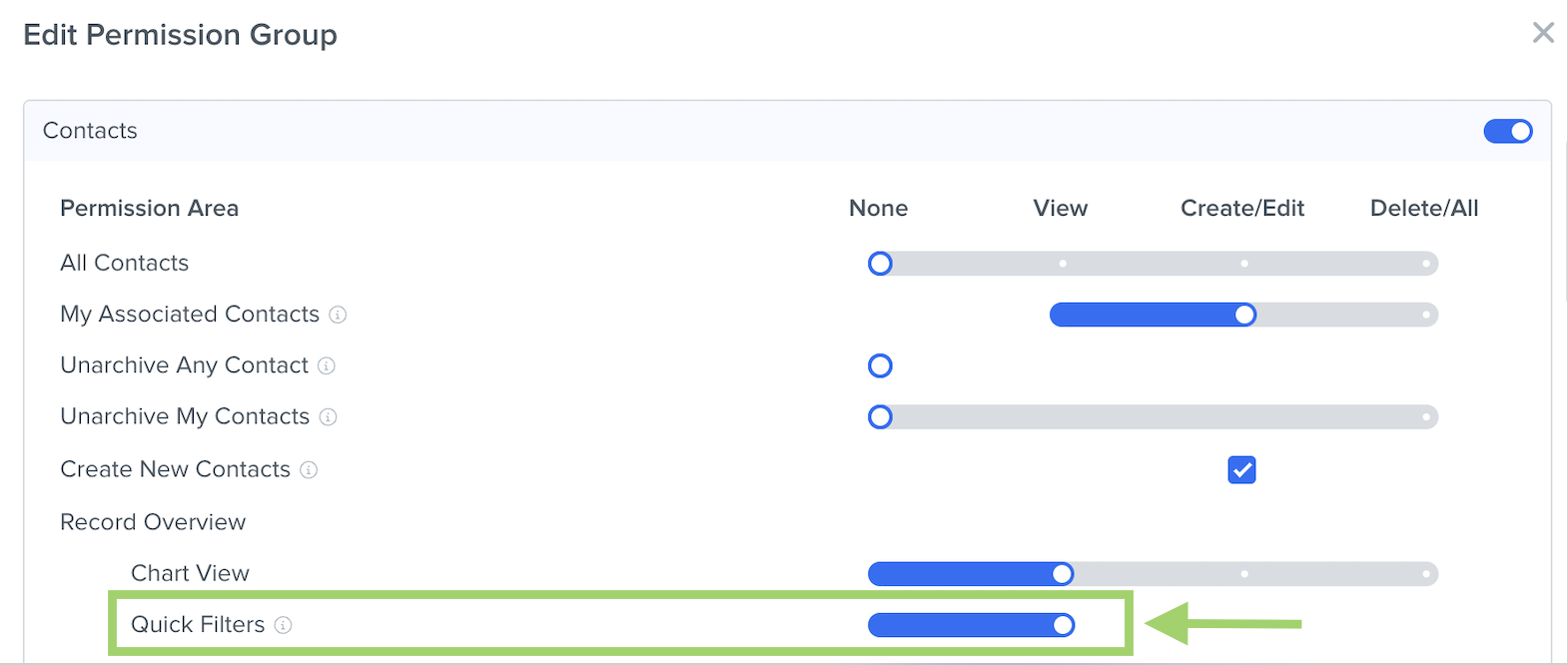
- Your permission group in your account does not have "Quick Filters" set to "View." To resolve this, ask your account Admin to go to the account Settings > Team, Roles, & Permissions and adjust your permission group's "Record Overview > Quick Filters" setting to be "View."
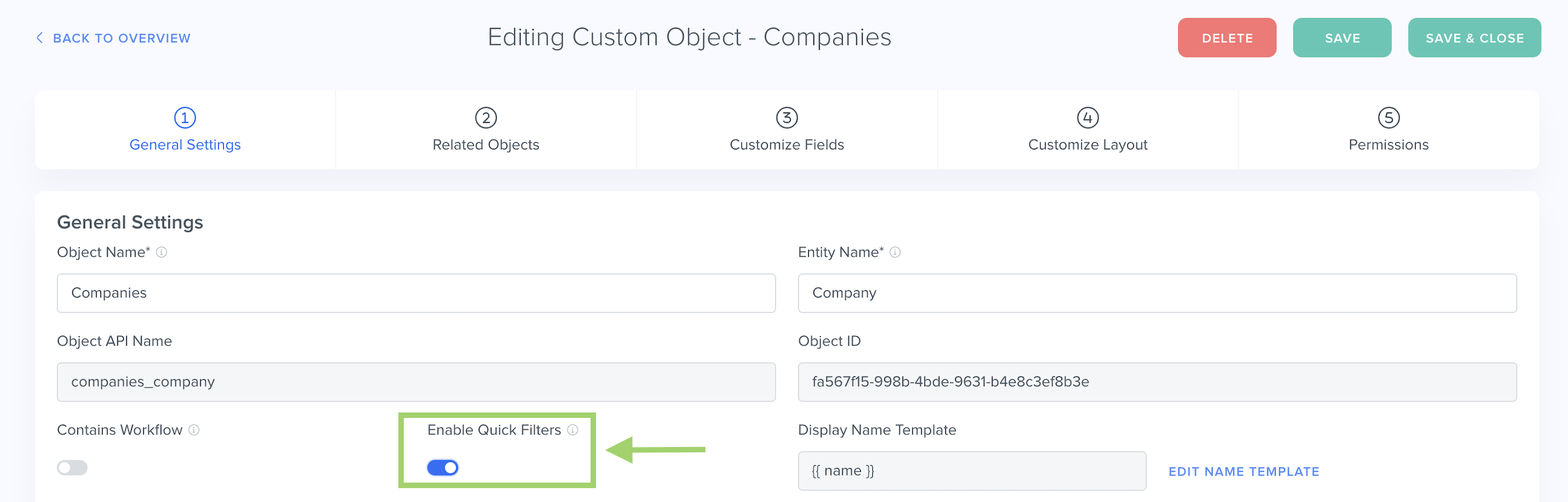
- Your Custom Object settings does not have Quick Filters enabled. To resolve this, navigate to your Object Settings and in the "General Settings" section, toggle "Enable Quick Filters" on.
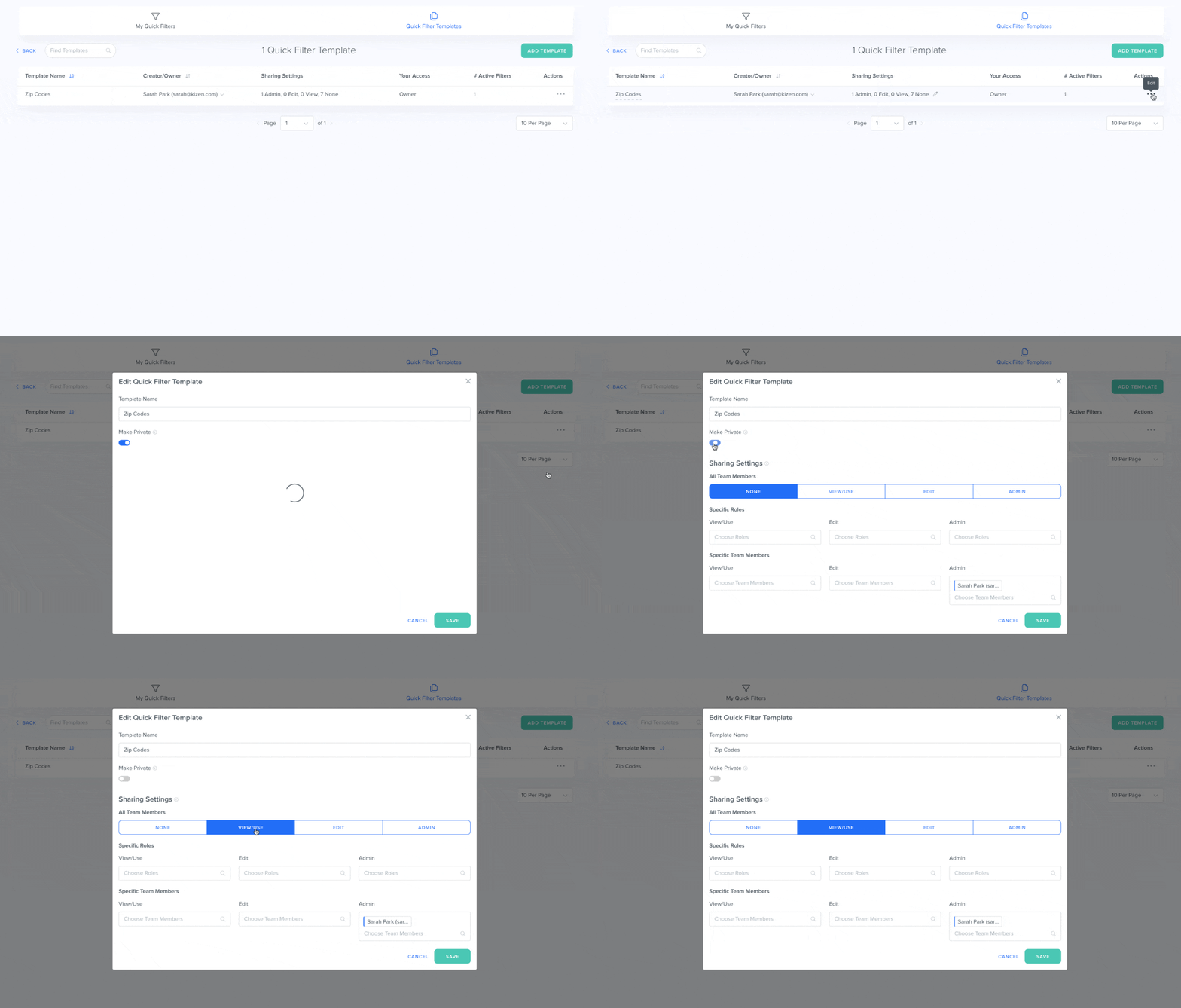
- You don't have permission to view the Quick Filter Template. To resolve this, ask the Quick Filter Template Owner to click on "Quick Filter Templates" > "..." icon to the right of the specific template > "Edit Sharing Settings" and change the Sharing Settings for all team members to "View."
Was this article helpful?
That’s Great!
Thank you for your feedback
Sorry! We couldn't be helpful
Thank you for your feedback
Feedback sent
We appreciate your effort and will try to fix the article