Purpose: Follow this step-by-step guide on how to edit and delete a Custom Object.
Prerequisites
Before you get started, make sure you complete the following:
✅ Read the Getting Started with Custom Objects in Kizen article to fully understand each Custom Object setting.
✅ Check that you have editing permissions for the specific Custom Object.
How to Edit a Custom Object
To edit a Custom Object after you’ve created it, you can access Object Settings from either of the following interfaces:
If you're already in the Custom Object you want to edit (ex: “Companies”), click on the gear icon in the upper right > “Object Settings.” These settings can be accessed by anyone on your team.

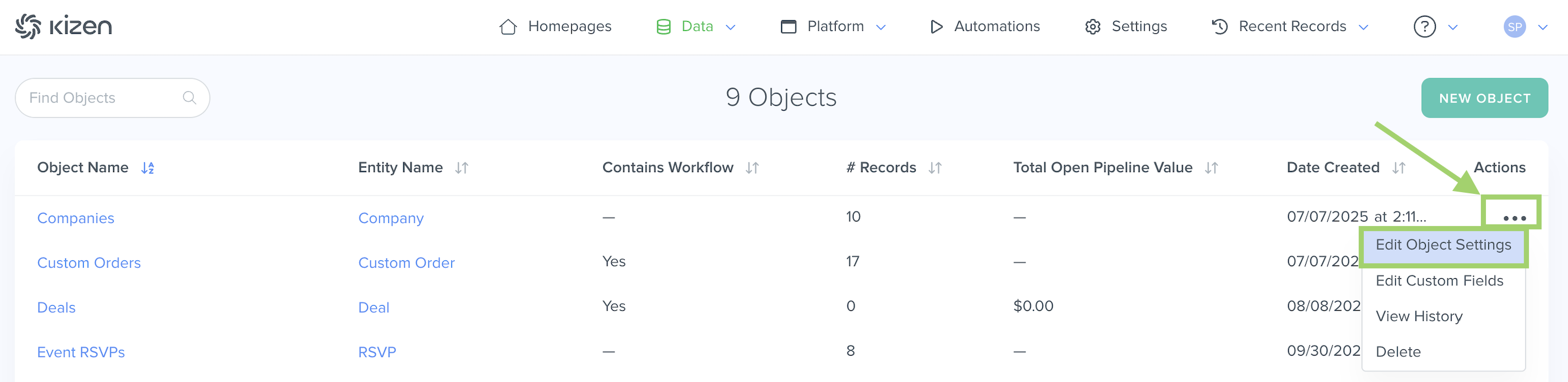
Click on "Data" in the top menu bar > "Custom Objects" > 3-dot menu ("...") next to the Object name > "Edit Object Settings."
How to Delete a Custom Object
Note: An Object cannot be deleted if it contains unarchived records. Before proceeding, make sure all Records in the Object have been archived. Learn how to Archive Records. To delete a Custom Object:
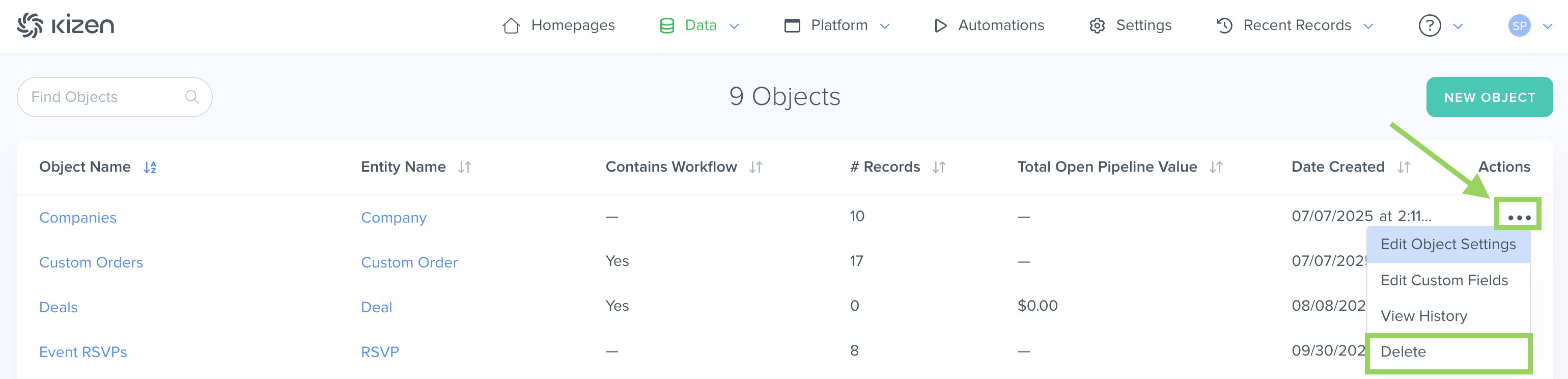
- Navigate to the same Custom Objects menu and click on the 3-dot menu ("...") next to the Object name > "Delete."
- Confirm the deletion by clicking into the box and typing "CONFIRM [number of records]."
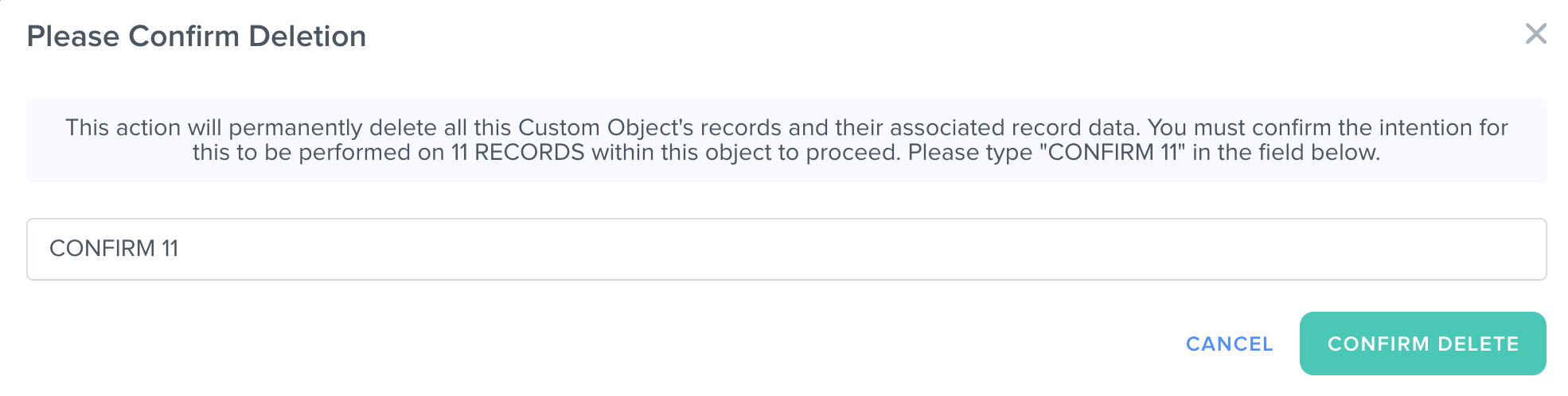
- Click on the "Confirm Delete" button.
Note: Deleting the Custom Object will permanently delete ALL of the records within that Custom Object.Related Articles
- Getting Started with Custom Objects in Kizen
- Custom Object (Workflow/Pipelines)
- Edit Contacts Settings
- How do I edit a Custom Field?
- How do I delete a Custom Field?
Still Need Help?
- If you encounter any issues, contact us at support@kizen.com
Was this article helpful?
That’s Great!
Thank you for your feedback
Sorry! We couldn't be helpful
Thank you for your feedback
Feedback sent
We appreciate your effort and will try to fix the article