Purpose: Learn how to export your Contacts and Custom Object records to a csv file, whether you want to pull reports or back up your data.
How to Export Your Contacts and Custom Object Records
- Click on "Data" > "Contacts" or "Custom Objects" OR "Platform" > "Contacts" or "Custom Objects" in the top menu bar:

- (Optional) If you would like to only export specific records, filter your Contacts or Custom Object records.
- Click on "Perform Action" button:

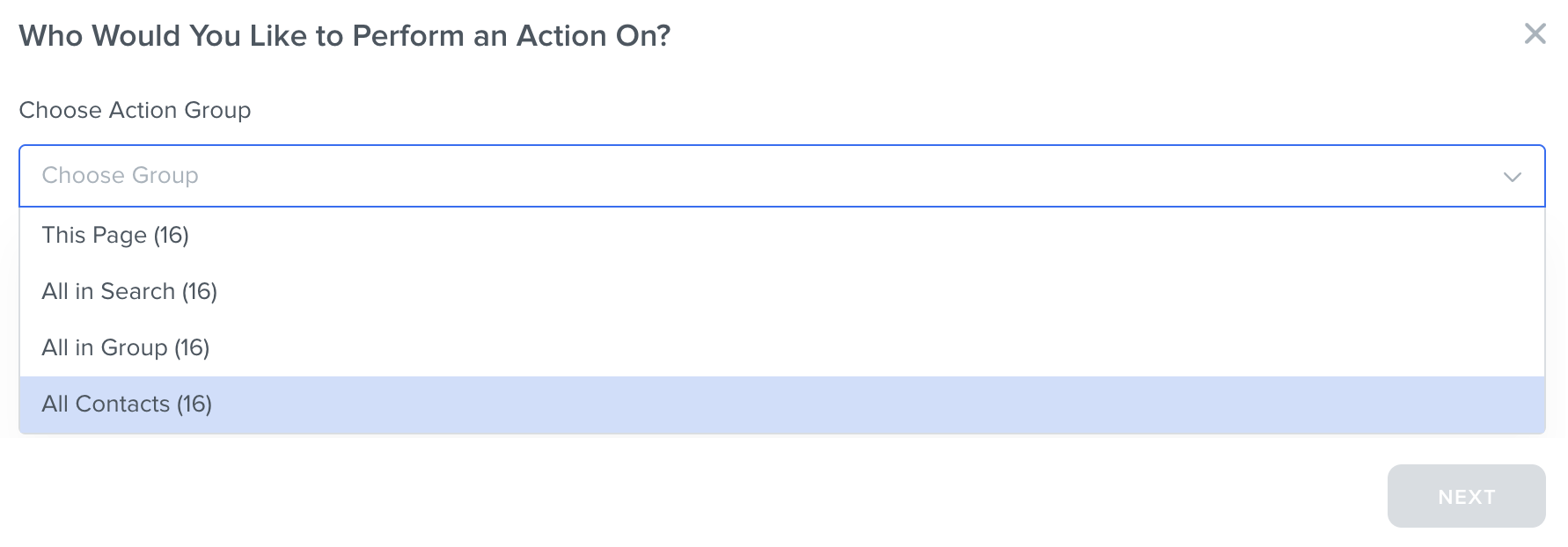
- Choose which group you would like to export:
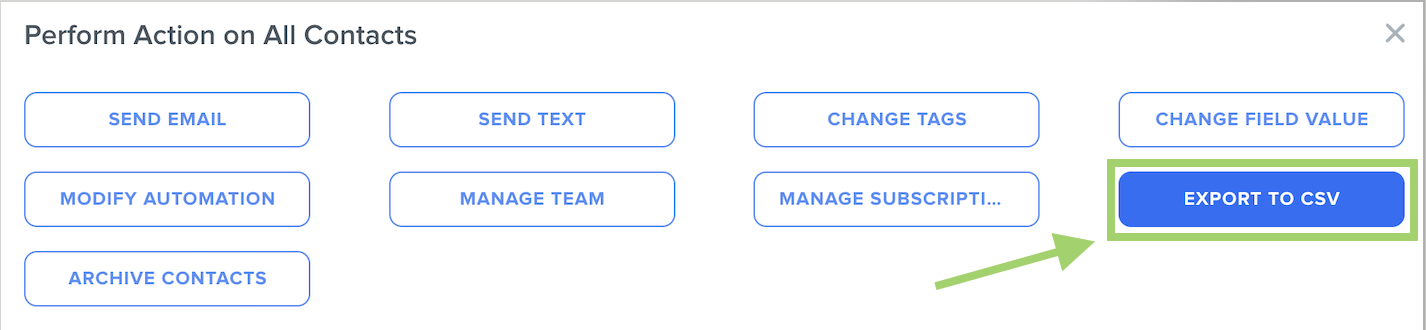
- Click on the "Export to CSV" button:
- Choose which columns you would like to export: "All Columns" for all of the object fields, "Visible Columns on Table" for the default columns on the table, or "Select Columns" to only export specific fields of your choosing.
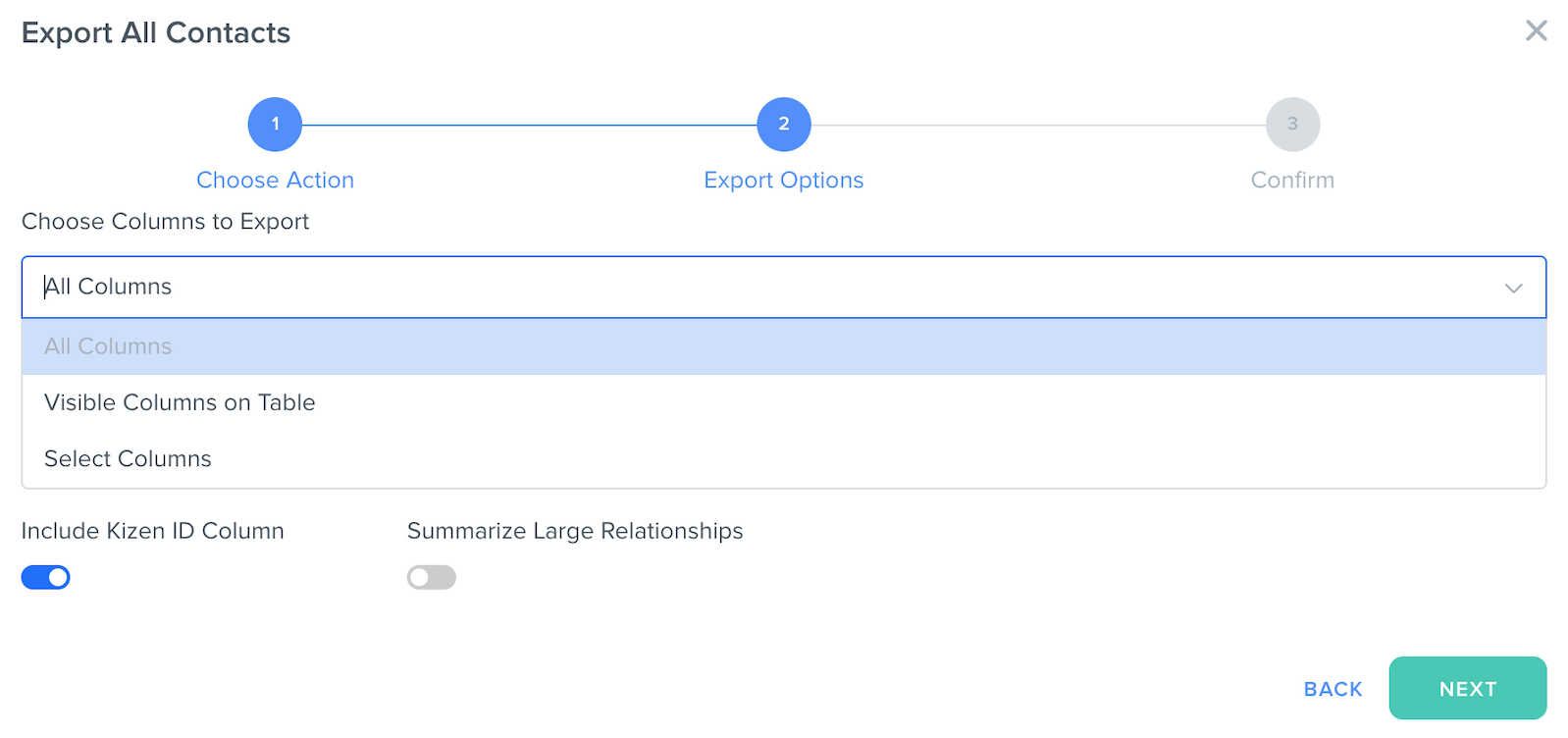
- Toggle "Include Kizen ID Column" on if you would like to include the Kizen record ID (found in the object record URL) in your csv file. This is useful if you would like to easily locate the record in your Kizen account.
- Toggle "Summarize Large Relationships" on if there are many related records in your Relationship Fields. This setting can decrease the overall time it takes to export your records.
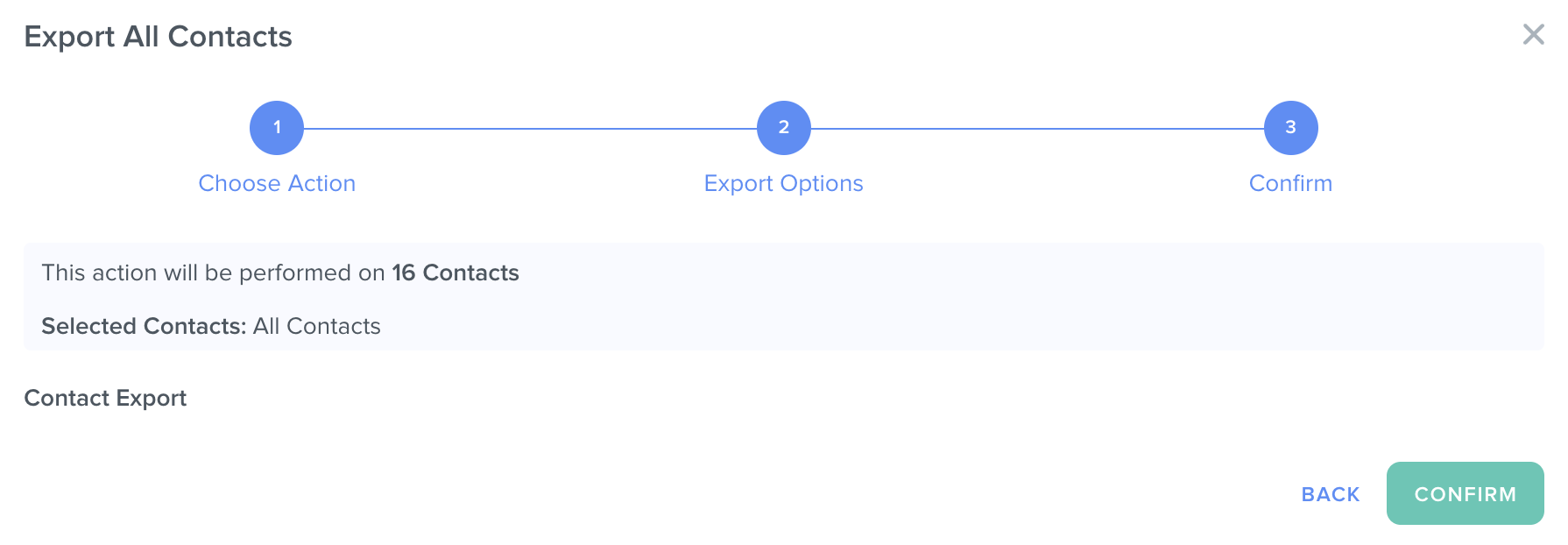
- Click on the "Confirm" button.
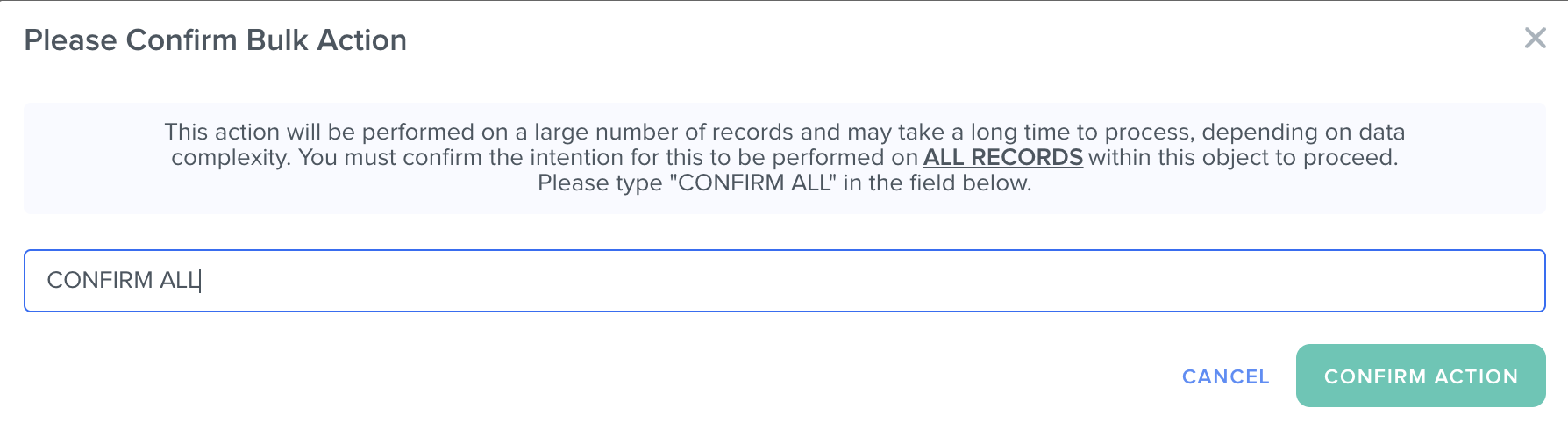
- If you opted to export all the records in your Custom Object or Contacts, type "CONFIRM ALL" to confirm the bulk action and click on the "Confirm Action" button.
- Open your email inbox and find the email with your export link from support@kizen.com.
- Click on the "Download Now" button in the body of the email message. The csv file will begin downloading to your device.
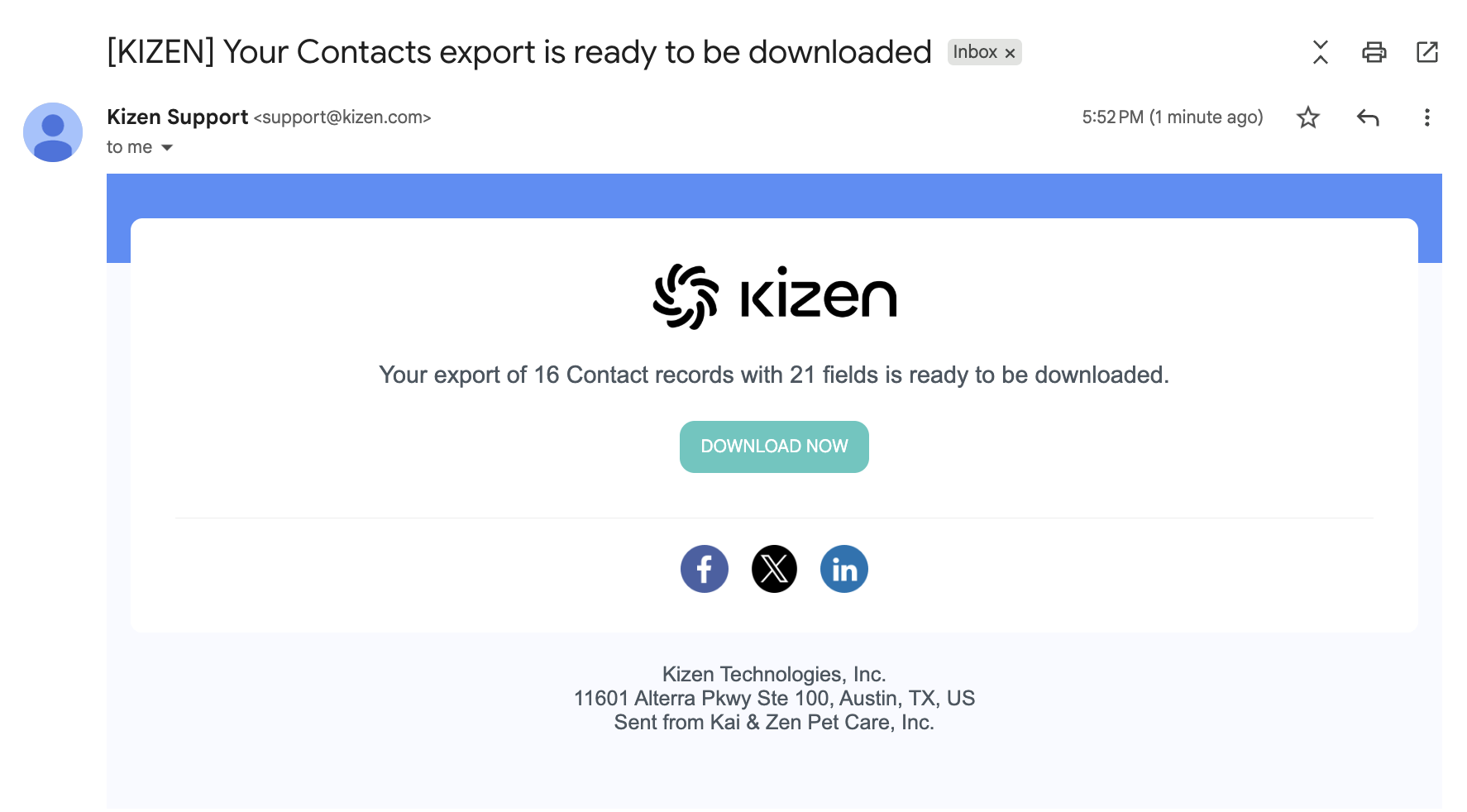
⚠️ Note: You must be logged into your Kizen account in your browser when you click on the "Download Now" button in order to download your csv file export.Was this article helpful?
That’s Great!
Thank you for your feedback
Sorry! We couldn't be helpful
Thank you for your feedback
Feedback sent
We appreciate your effort and will try to fix the article