Purpose: Learn how to unarchive a Contact record or Custom Object record that you had previously added and then archived from your Kizen account.
Overview
Archiving your Contacts or Custom Object records is an easy way to keep your business data up-to-date and organized. However, there may be scenarios where you need to unarchive a record—perhaps a former client has returned to your business, or you need access to data that was unintentionally archived. To successfully unarchive a record, you will need either the Contact's unique email address or the exact Custom Object record name as it appeared before archiving. The system uses this exact match to locate the archived entry in our database for you.
⚠️ Note: If you are an Agent CRM user, you may be restricted from unarchiving certain records due to pre-built integration configurations. If you run into a permissions error, reach out to our Support team, and we'll be happy to assist you! How to Unarchive a Contact or Custom Object Record
- Click on Data in your top toolbar menu > Contacts or Custom Objects.

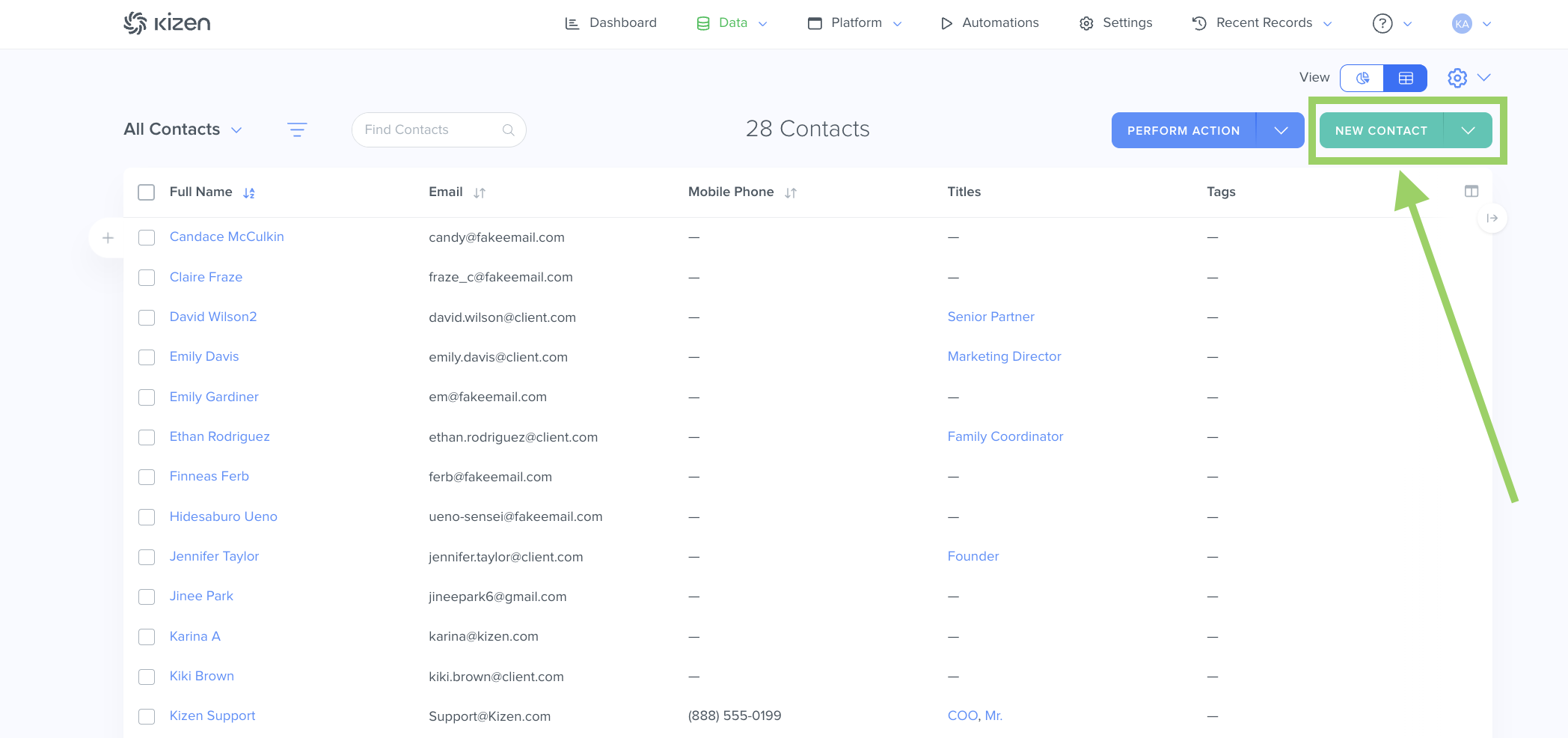
- Click on the green "New Contact" or "New [Name of your Object]" button in the top right:
- In the pop-up window, click into the "Email" field for Contacts or the "Name" field for Custom Objects, and add the exact email address or name of the object record that you want to unarchive.
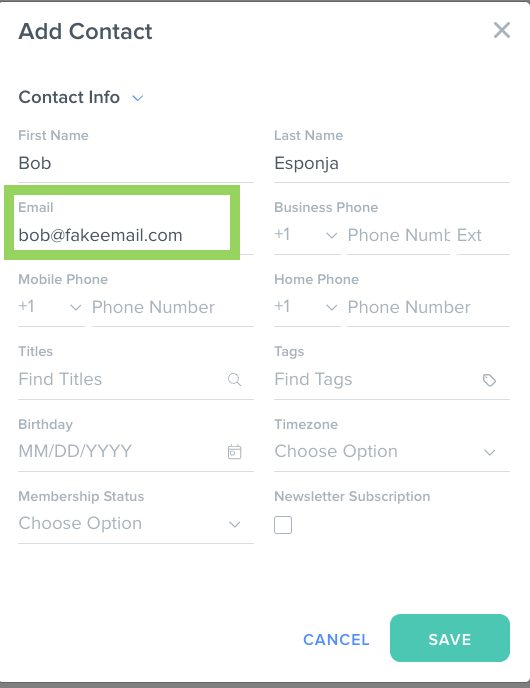
⚠️ Note: Do not fill out any new information in the pop-up window—when you unarchive the record, it will overwrite the new data with the old record's data. - Click the green "Save" Button.
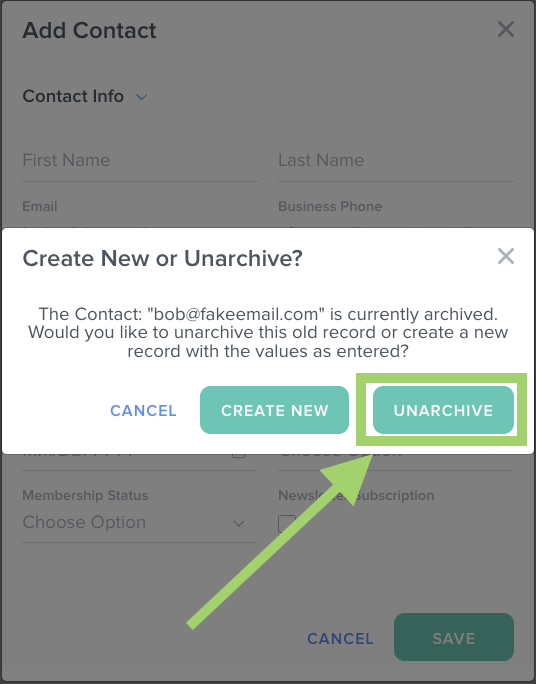
- In the confirmation window, click on "Unarchive." (If you want to restore the old record's data, make sure you do not click on "Create New" as this will create a completely new record with new data, and this will permanently overwrite the old record.)
- Et voila! You will see the unarchived record back in your Contacts or Custom Objects now.
Related Articles
- How to Add a Custom Object in Kizen
- How to Export Your Contacts & Custom Object Records
- How to Filter Your Contacts & Custom Object Records
Still Need Help?
If you encounter any issues, contact support@kizen.com.
Was this article helpful?
That’s Great!
Thank you for your feedback
Sorry! We couldn't be helpful
Thank you for your feedback
Feedback sent
We appreciate your effort and will try to fix the article