Purpose: Learn how to edit, duplicate, and delete the email templates in your Kizen Library.
TABLE OF CONTENTS
Overview
An email template is a pre-built email that you can use to create uniformity and consistency across all of your communications with clients. Instead of creating a new email from scratch every time you need to communicate with a client, you can use a template you've already created to expedite the process.
You can create and manage existing email templates in your Kizen Library and then access these emails easily whenever you need to send an email from a Contact record or set up an Agentic Workflow. 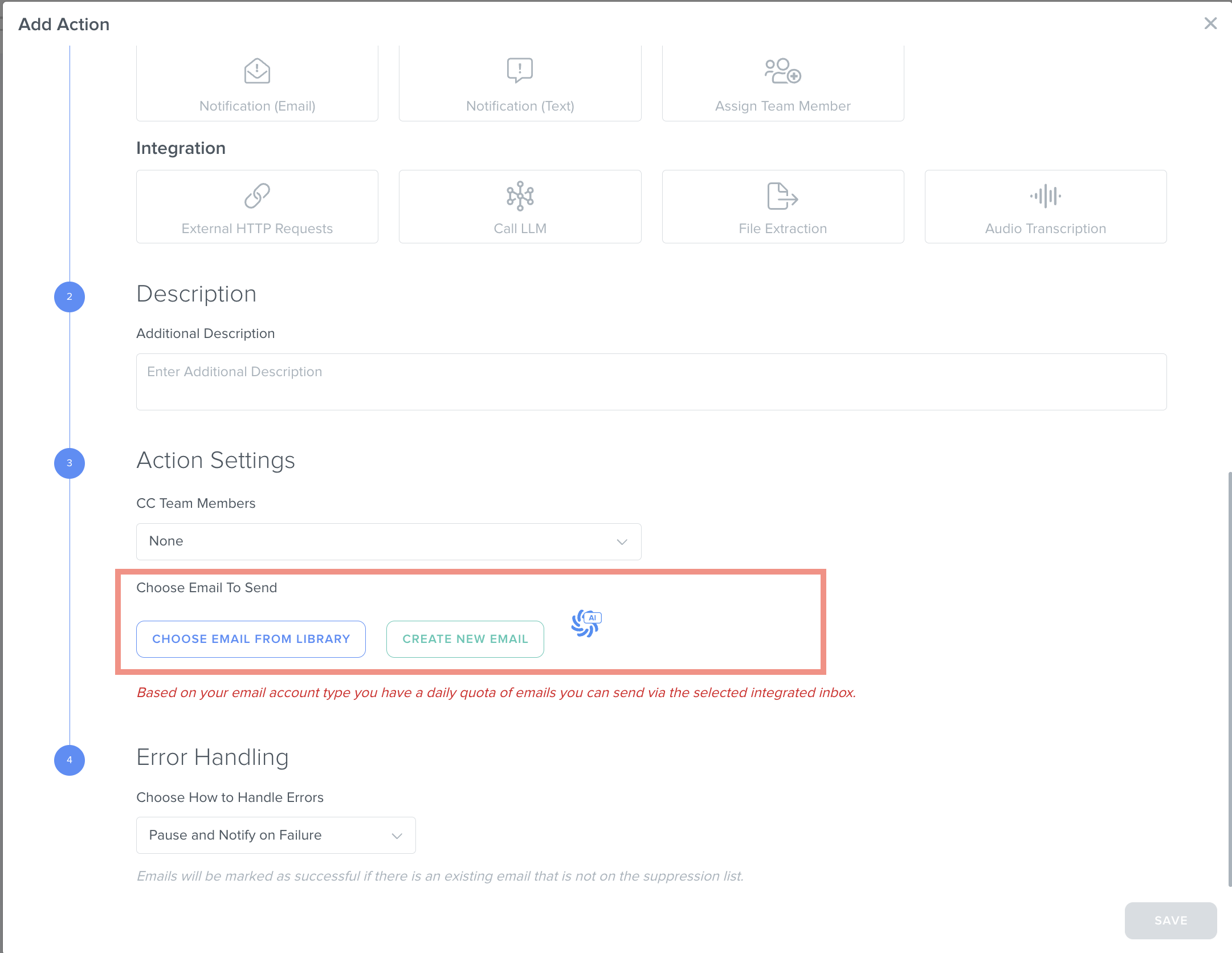
Prerequisites
Before editing your email templates, make sure to set up your Integrated Inbox and learn how to create new email templates using the Kizen builder.
✅ Integrated Inbox Overview: Connect Your Email Account to Send and Track Emails
✅ How to Create a Custom Email in Kizen
✅ How to Send Emails to Your Contacts from Kizen
How To Manage Your Email Templates
How to Duplicate an Email Template
Duplicating an email template is useful when you want to use an existing template as the base for a new email message, experiment with changes while keeping the original email intact, or simply save time while maintaining consistent brand messaging.
- Select "Platform" > "Library" from your top toolbar menu.

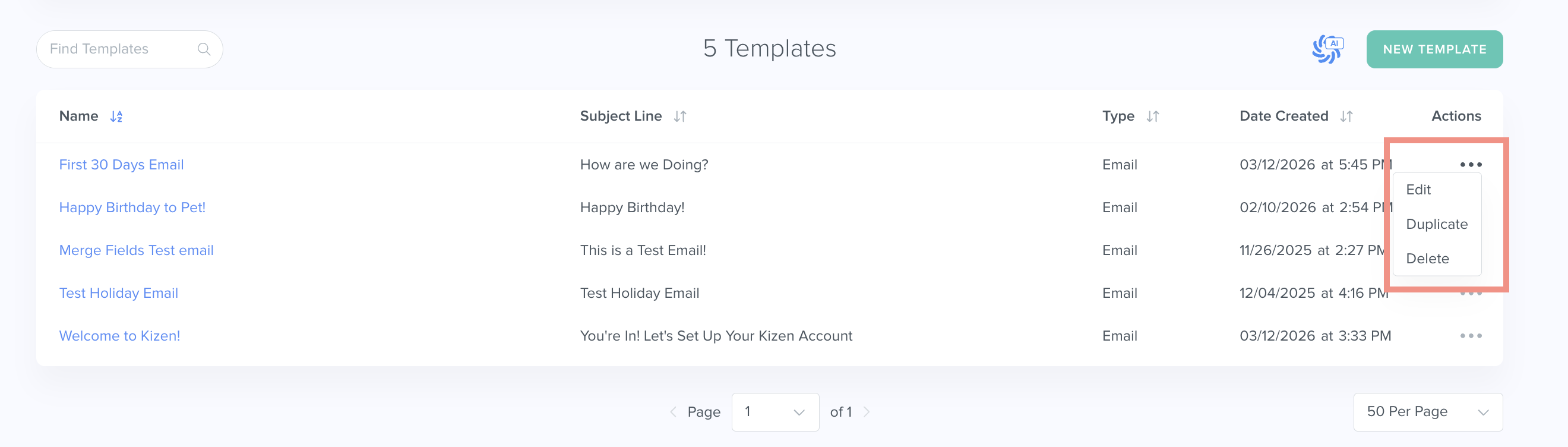
- Select the "..." menu to the right of the specific email template > "Duplicate".
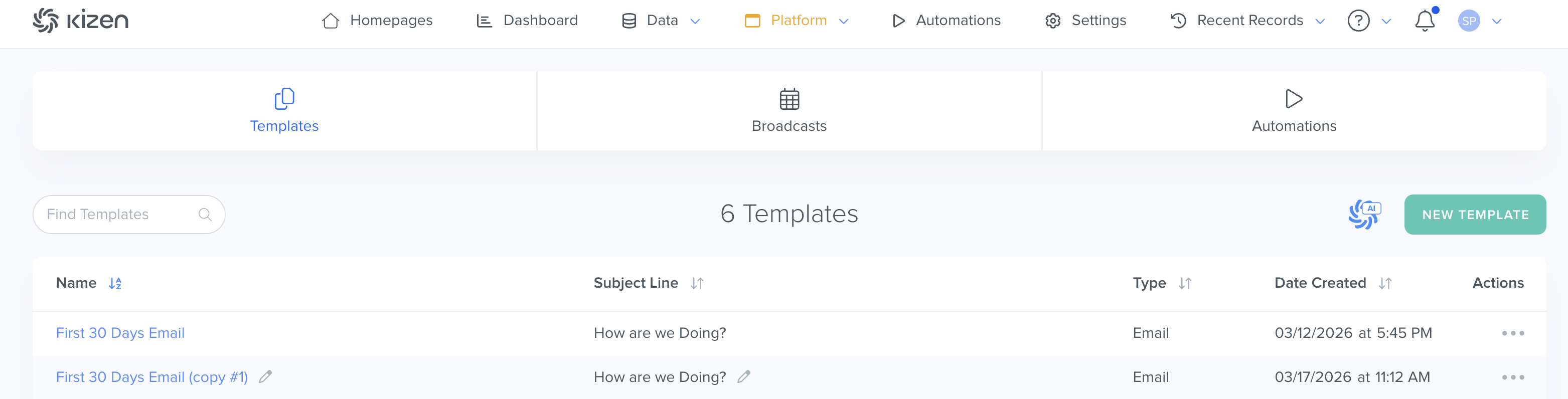
- When the duplicate email template appears with "(copy #1)" in its name, hover over the template name and click on the pencil icon.
How to Edit an Email Template
- Select "Platform" > "Library" from your top toolbar menu.

- Select the "..." menu to the right of the specific email template > "Edit."
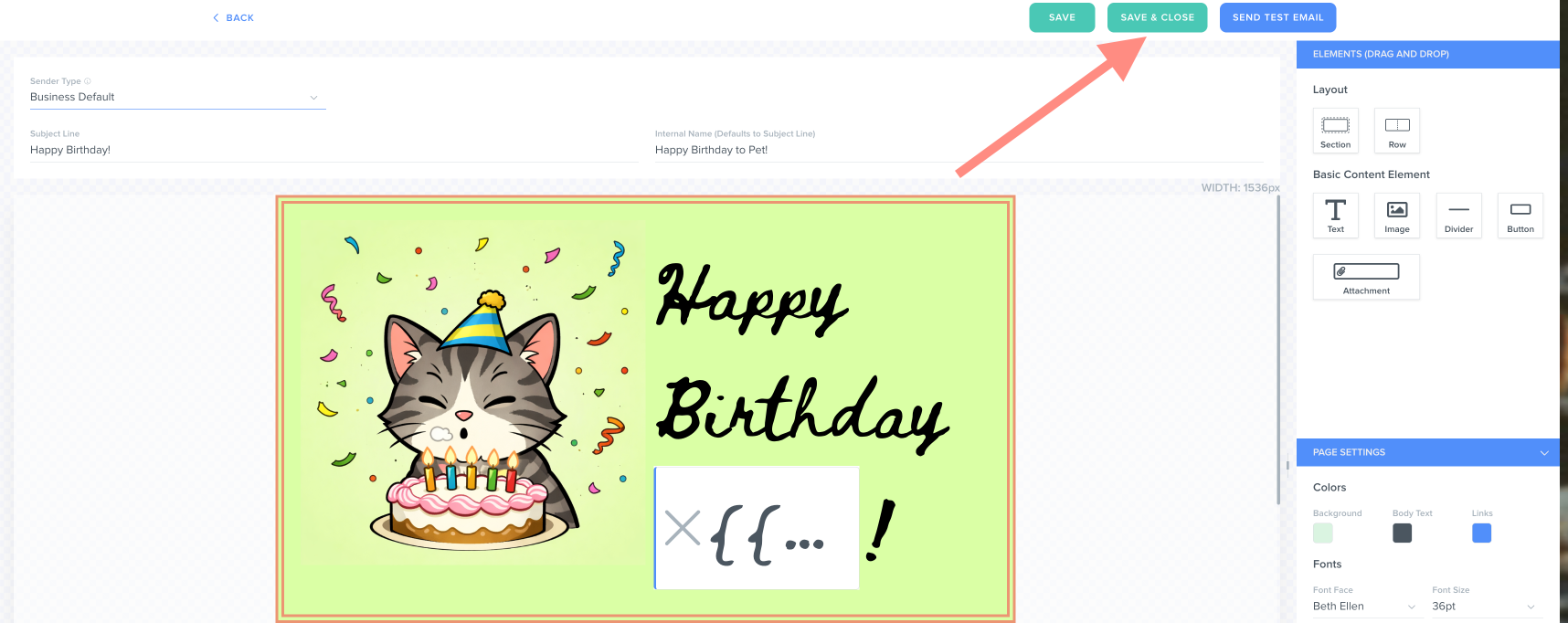
- Make the necessary changes in the email builder (use this guide for a refresher on the email builder) and then select "Save & Close" or send yourself a test email to make sure everything looks good.
How to Delete an Email Template
- Select "Platform" > "Library" from your top toolbar menu.
- Select the "..." menu to the right of the specific email template you want to delete > "Delete".
- In the pop-up window, select "Confirm Delete."
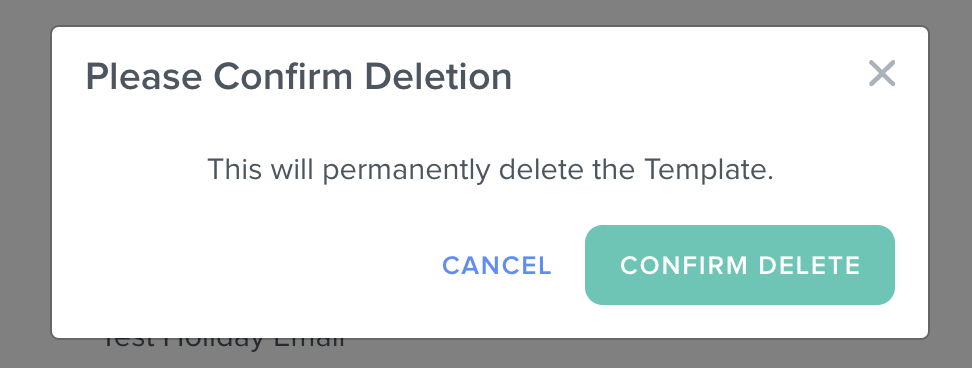
⚠️ Note: Deleting the email template will permanently delete the template. There is no way to recover a deleted email template.
Related Articles
- How to Schedule Mass Emails & Agentic Workflows from the Broadcast Calendar
- How to Create A Survey
- How to Create A Form
Still Need Help?
If you encounter any issues, contact support@kizen.com.
Was this article helpful?
That’s Great!
Thank you for your feedback
Sorry! We couldn't be helpful
Thank you for your feedback
Feedback sent
We appreciate your effort and will try to fix the article